
We open the tablet, type quintonic.fr into the browser, enter our credentials, and nothing happens. The screen remains frozen on the homepage, or the site keeps asking for the password in a loop. On the smartphone, everything works.
This scenario often occurs when using a shared tablet in a family or community setting. Connecting to Quintonic on a tablet does not pose any major technical difficulties, but some specific adjustments related to the browser and session management deserve a thorough check before changing the password.
Quintonic Connection on Tablet: The Browser is Almost Always the Culprit
Quintonic works without a dedicated app. It is accessed directly from the tablet’s browser, whether it’s Safari on iPad or Chrome on Android. The site displays the same “Log in” and “Sign up” buttons as on a computer.
When the connection fails on the tablet while it works on the smartphone, the issue rarely comes from the account itself. Three causes frequently arise.
- Cookies are disabled or automatically cleared. Some shared tablets are configured to delete browsing data when the browser is closed, preventing Quintonic from keeping the session open.
- The browser is in private mode (or “incognito mode”). In this mode, no credentials are retained, and the “Remember me” checkbox has no effect.
- An old password is saved in the tablet’s password manager. The browser autofills the field with outdated credentials, and the connection fails without a clear message.
For a detailed guide for connecting to Quintonic with screenshots, the beginners’ section also covers creating a shortcut on the home screen.
Checks to Make on Tablet Before Resetting the Quintonic Password
Resetting your password is the first reflex. It is rarely the right solution when the account works on another device. Here are the concrete steps to follow on the tablet, in order.

Check that Private Browsing is Disabled
On Safari (iPad), a dark banner at the top of the screen indicates “Private Browsing.” You can disable it by tapping the tab icon and then selecting a regular tab group. On Chrome (Android), an Incognito tab displays a small mask in the address bar. Simply close that tab and open a regular one.
Delete the Outdated Saved Password
If the tablet autofills the email address and password but the connection fails, the password manager likely retains old credentials. On Chrome, access saved passwords via Settings, then Password Manager. Search for “quintonic,” delete the entry, and manually re-enter your current credentials.
On Safari, the path goes through Settings, then Passwords. The tablet will ask for the unlock code or Face ID before displaying the list.
Enable Cookies for quintonic.fr
Without active cookies, Quintonic cannot maintain the session. On Chrome Android, go to Settings, Privacy and Security, then Cookies. The option “Allow all cookies” or “Block third-party cookies” (but not “Block all cookies”) allows Quintonic to function. On Safari, the “Block all cookies” option in Settings, Safari must be disabled.
Testing the connection after each step avoids changing everything at once without knowing what was actually blocking it.
Shared Tablet and Quintonic Session: Avoid Repeated Disconnections
When multiple people use the same tablet, session management quickly becomes a headache. Each user who logs into Quintonic with their own credentials disconnects the previous one if the browser is not configured to separate profiles.
On Chrome, creating a separate user profile on the tablet solves this problem. Each profile retains its own cookies, saved passwords, and history. You can add a profile via the account icon at the top right of Chrome.
On iPad, Safari does not manage multiple profiles in the same way. The simplest solution is to use two different browsers (Safari for one user, Chrome for the other). Feedback on this point varies depending on iPadOS versions, but this method works in most cases.
Check “Remember Me” at the Right Time
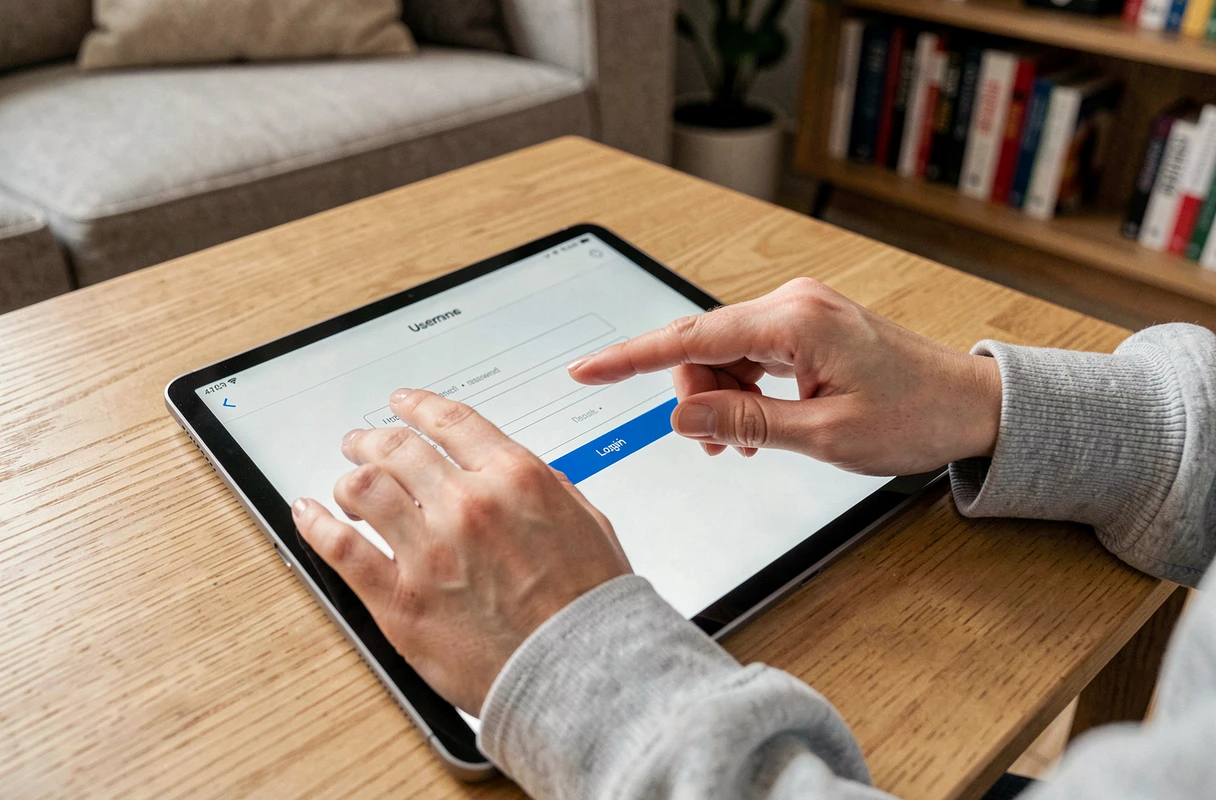
The “Remember Me” checkbox on the Quintonic login page asks the browser to save the session. It only works if cookies are active and private browsing is disabled. Checking this box on a shared tablet exposes the account to other users of the device.
If the tablet is strictly personal, this option saves time. On a shared tablet (in a residence, club, or at friends’ homes), it is better not to check it and re-enter your credentials each visit.
Virtual Keyboard and Entering the Quintonic Password on Tablet
A detail that often blocks the connection on a tablet: autocorrect modifies the password during entry. The virtual keyboard on Android as well as on iOS can add a capital letter at the beginning of the field, replace a word with a suggestion, or insert a space after a period.
To avoid these unwanted corrections, you can temporarily disable autocorrect in the keyboard settings before typing the password. The other option is to use the “show password” feature (the eye icon next to the field) to visually verify that the entered text matches what you expect.
If manual entry remains difficult, voice dictation is not suitable for a password. However, a password manager like the one integrated into Chrome or Safari fills the field without the risk of typos, provided the saved entry is up to date.
The majority of Quintonic connection blocks on tablets can be resolved without resetting the password. A browser in regular mode, active cookies, and a password entered without autocorrect are sufficient in almost all cases. Checking these three points takes less than two minutes and saves the wait for the reset email, which sometimes ends up in spam.