A Google Play Store account is the single access point to applications, games, books, and movies available on an Android device. This account is based on a Gmail address (or any other email associated with Google) and centralizes purchases, subscriptions, and download preferences. Creating this account and properly linking it to a smartphone or tablet is essential for the proper functioning of almost all Android services.
Google Account and Play Store Account: the Technical Distinction
The Google account is a universal identifier. It provides access to Gmail, Google Drive, YouTube, and all services within the Google ecosystem. The Play Store is just one of the services linked to this account.
Creating a Google account essentially means creating access to the Play Store. There is no separate registration. The confusion arises because the Play Store app sometimes asks to “log in,” while the login occurs at the Android system level, in the device settings.
For those who wish to set up a Google Play Store account on a new device, the procedure always starts with adding a Google account in the Android settings, not in the Play Store app itself.
Adding a Google Account on an Android Device
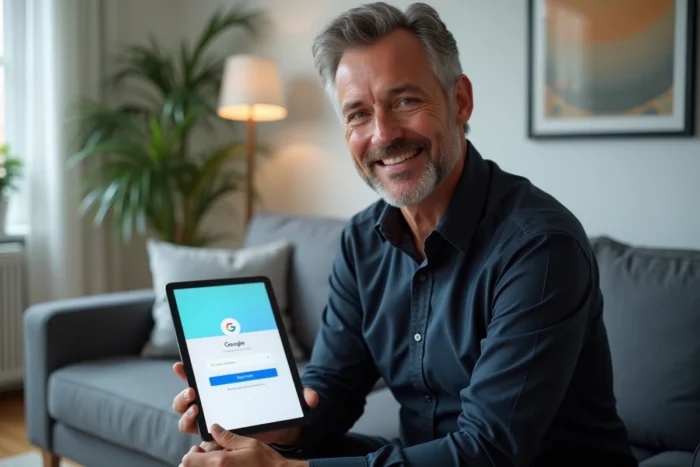
The addition is done in the system settings. The procedure remains stable from one version of Android to another, with minor variations in wording depending on manufacturers.
- Open the Settings of the device, then look for the “Accounts” section (sometimes “Accounts and sync” or “Users and accounts”)
- Tap on “Add account,” then select “Google”
- Enter the existing Google email address or create a new account by following the displayed instructions
- Accept the terms of service, configure backup and sync options
Once the account is added at the system level, the Play Store app automatically detects it. No additional action is required in the Play Store.
Case of Devices with Multiple Accounts
Android allows the addition of multiple Google accounts on the same device. The Play Store then displays the avatar of the active account at the top right of the screen. Tapping on this avatar allows switching from one account to another.
Purchases and subscriptions remain linked to the account that made them. Downloading a paid app with account A does not make it available on account B, even if both are on the same phone.
Play Protect Certification and Uncertified Devices
One point that most setup guides overlook: not all Android devices are Play Protect certified. This certification, issued by Google to manufacturers that meet its security requirements, conditions full access to the Play Store.
To check the certification status of a device, the method is simple: open the Play Store app, tap on the profile icon at the top right, then go to Settings and check the “About” section.
On an uncertified device (some imported models or custom ROMs), the Play Store may function in a degraded manner. Some apps may not appear in search results, and updates may be delayed or blocked. Before purchasing an Android smartphone from a lesser-known brand, checking Play Protect certification can prevent disappointments.
Resolving Common Blockages During Linking
The linking between a Google account and a device sometimes fails without an explicit error message. Three situations frequently arise.
The Play Store Displays “No Connection”
This message appears even with a stable Wi-Fi connection. The problem often stems from the cache of the Play Store app. Clearing the cache (Settings, Apps, Google Play Store, Storage, Clear cache) resolves most of these blockages.
If the problem persists, check that an active VPN is not redirecting traffic to a country where certain Google services are restricted.
Apps Unavailable Despite a Valid Account
Some apps impose geographical restrictions or a minimum age. The Play Store relies on the country defined in the payment profile of the Google account, not on the physical location of the device.
The payment profile country can only be changed once a year. This limitation surprises users who move or travel frequently.
Sync Blocked After a Password Change
Changing the Google account password from a computer sometimes disconnects the session on the smartphone. The device then displays a notification asking to reconnect. As long as this reconnection is not performed, the Play Store refuses to download or update apps.
New Play Store Features to Know in 2026
Two recent developments change the way the Google account interacts with the Play Store.
Google has integrated the Play Store into Gemini, its AI-based assistant. Since June 2026, it is possible to search for and install apps directly from a conversation with Gemini, without manually opening the Play Store. This feature requires a personal Google account connected to Gemini and the Play Store app installed on the device. It is reserved for users aged 18 and over and is still being gradually rolled out.
The Play Store now allows third-party payment systems for app purchases and in-app purchases. This opening, effective since June 2026, adds new payment options beyond Google Pay, with specific compliance requirements for developers.
These changes do not alter the procedure for creating or linking an account. The foundation remains the same: a Google account, added in the system settings, provides access to the Play Store and all its features. What evolves are the service layers that rely on this account, not the account itself.